Are you struggling to perfect the audio for your video projects? Look no further! Video2Edit's online audio editor simplifies the process, allowing you to fine-tune and enhance audio tracks with ease. Keep reading to discover how you can quickly achieve professional results without using complex software.
Why Choose Video2Edit's Audio Editor?
Our audio editor stands out with its intuitive interface and robust features. It enables you to make precise adjustments to your audio tracks, ensuring that your video projects not only look great but sound excellent too.
Whether you are editing a promotional video, social media content, or a personal project, Video2Edit provides the tools you need to achieve top-notch results with ease!
Key Features of the Audio Editor
- Edit Audio Track of a Video: Directly modify the audio track of any video clip or movie. Whether you want to remove the audio entirely or enhance its quality, our tool makes it straightforward.
- Convert Video File: Change your video into various formats such as MP4, AVI, or MKV, ensuring compatibility with different devices and platforms.
- Disable Audio: Prefer a video without sound? Easily disable the audio track to focus on visuals or add your background music later.
- Improve Audio Quality: Boost the clarity and professionalism of your video's audio by adjusting its quality settings.
- Change Audio Codec: Choose the audio codec that best fits your project's needs, ensuring optimal performance and compatibility.
- Select Audio Frequency: Adjust the audio frequency to suit your project's requirements. Higher frequencies offer better sound fidelity.
How to Use Video2Edit's Audio Editor?
Follow these simple steps:
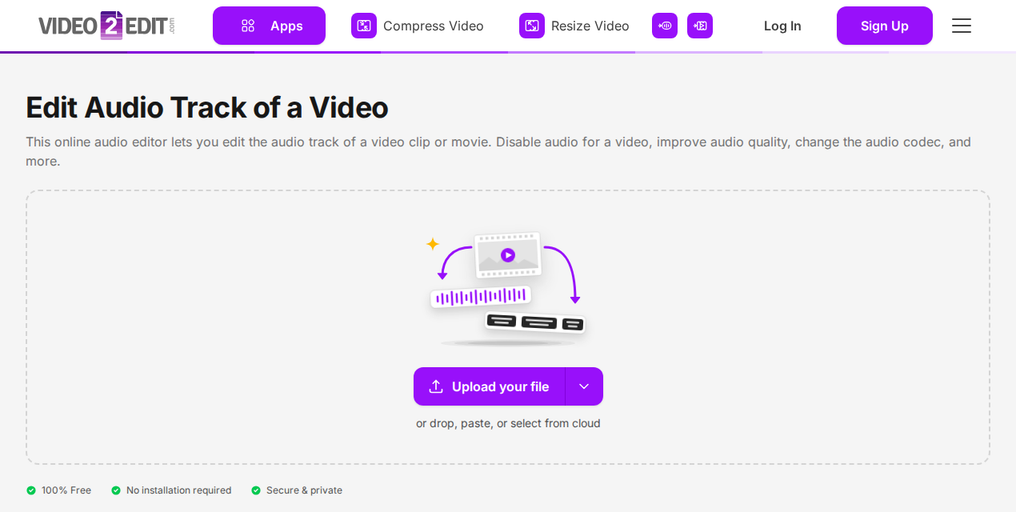
- Upload Your Video: Open the Audio Editor app on Video2Edit. Click "Upload your file" to add a video from your device, or drop it onto the box. The arrow next to the button lets you add a file from a URL, Google Drive, OneDrive, or Dropbox, or load a sample file to try.
- Configure Settings: Select your desired file format, codec, quality, and frequency settings.
- Apply Changes: Click "Edit Now" to convert your video to the selected format and apply the audio changes.
- Download: Once the process is complete, download your edited video file.
Ready to Transform Your Video's Audio Quality?
Unlike other online editors, Video2Edit offers a comprehensive range of settings and a user-friendly interface, making it the ideal choice for both beginners and professionals.
Try this popular online audio editor today and experience an effortless way to perfect your video's sound!
Want More Tips? Check Out These Guides:
- Video Volume Booster: Enhance Your Video's Audio Quality
- How to Extract Tracks from Videos
- How to Resize Video Online
- How to Merge Videos
- How to Convert Image to Video
Is This Service Free?
Everyday use is free with no account needed, and a free account increases your allowance. Credits are used to process tasks. Each task uses credits based on its complexity. Standard tasks typically cost 1 credit, while AI-powered tasks may cost more. Your credits renew every month with your subscription.
Choosing the Right Plan:
Starter is for individuals who want to unlock premium apps and more capacity. Pro is for growing teams and organizations that need advanced AI access, automation integrations, and more users. Business is for large organizations that need the highest limits, centralized billing, and dedicated business features.
- Subscription Plans: Pay monthly or annually to get a set number of Credits.
- Add-on credits: You can buy add-on credit packs at any time. Add-on credits do not reset with your billing cycle; they stay valid for one year or until used.
Subscription credits reset at the beginning of each billing cycle and do not roll over. However, purchased add-on credits remain valid until used.
For more details, visit our pricing page.