
Visual content is a powerful way to communicate, tell stories, and engage. Whether you're a content creator, marketer, educator, or simply sharing memories, converting images to video unlocks many creative options.
In this blog, we introduce you to Video2Edit's easy-to-use Image-to-Video tool. It lets you turn a sequence of still images into a video presentation. Follow our step-by-step guide to converting images to video and discover the benefits of this flexible method. Let's get started.
Benefits of Converting Images to Video
Enhanced Visual Appeal: By converting still images into a video, you can create a dynamic and visually engaging presentation that holds your audience's attention.
Storytelling Possibilities: Transforming images into a video lets you tell a story or share a message more clearly by adding transitions, music, or voiceovers.
Improved Branding: Videos are highly shareable and can increase brand awareness and engagement on social media. By converting images to video, you can present your brand in a more engaging and memorable way.
Better Engagement: Videos often attract more attention and interaction than static images. Converting images to video can boost viewer engagement and retention, which can improve your marketing campaigns or presentations.
Versatile Applications: Create a slideshow for a presentation, a promotional video for your business, or a montage of memories for a personal project. Converting images to video offers many options for creativity and expression.
How to Convert Images to Video?
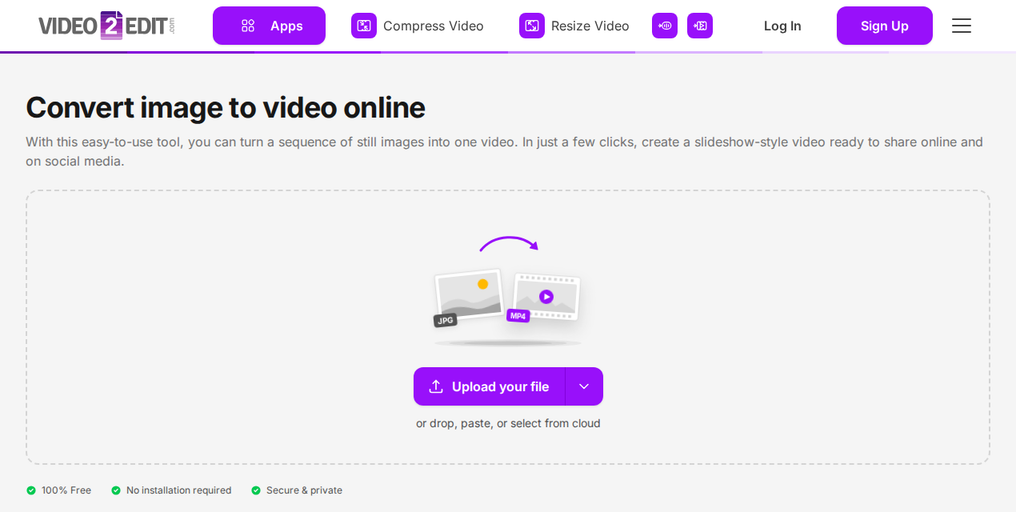
- Select 'Convert Image To Video Online' tool on video2edit.org
- Click "Upload your file" and select the images you want to convert to a video. Use the arrow next to the button to add images from a URL, Google Drive, OneDrive, or Dropbox.
- Reorder your image files by dragging them into the sequence you want for your video.
- Open the Settings tab to choose the video format and size, how long each image is shown, and the frame rate (optional).
- Click Convert to Video to create your video, then click Download to save it.
In Conclusion
Turning static images into videos not only boosts engagement. It also helps you share your message more clearly and keep your audience's attention.
With Video2Edit's user-friendly tool, converting images to video is fast and simple. Try the Image to Video tool today and use visual storytelling in your next project.
Go Premium!
Upgrade now to unlock the full potential of Video2Edit - Free Online Video Converter & Editor with our premium plan.
Enjoy seamless access to advanced features for frequent use. Your subscription will renew automatically, but you stay in control and can cancel anytime. Get over 20% off when you choose the annual plan. Plus, we offer free accounts for teachers and students!