
GIFs are everywhere - from bringing humor to conversations to adding flair to social media posts and marketing content. You can turn your favorite MP4 video clips into GIFs in just a few clicks. With Video2Edit's MP4 to GIF converter, it is fast, simple, and free to create high-quality animated GIFs from short video clips.
No need to worry about complicated software or slow downloads. Whether you are a pro content creator or just having fun, converting MP4 to GIF is quick and easy.
What is a GIF Animation?
A GIF animation is an image encoded in the Graphics Interchange Format (GIF). It consists of a series of frames displayed in a specific sequence to create the illusion of motion, similar to a short video. However, unlike videos, GIFs only contain visual information, with no audio. This makes GIFs suitable for sharing lightweight, engaging visual content.
Why Convert MP4 to GIF?
Before we show you how to convert an MP4 video to a GIF animation, here is why this can be useful:
- Social media-friendly: Share short, engaging clips on platforms like Twitter, Facebook, and YouTube Community Posts.
- Small file sizes: GIFs are smaller than video files, making them faster to upload and easier to share.
- Great for messaging apps: GIFs work seamlessly on WhatsApp, Signal, Facebook Messenger, and other chat platforms.
GIFs capture attention quickly, making them useful for conveying emotions, humor, or creative ideas.
How to Convert MP4 to GIF Online?
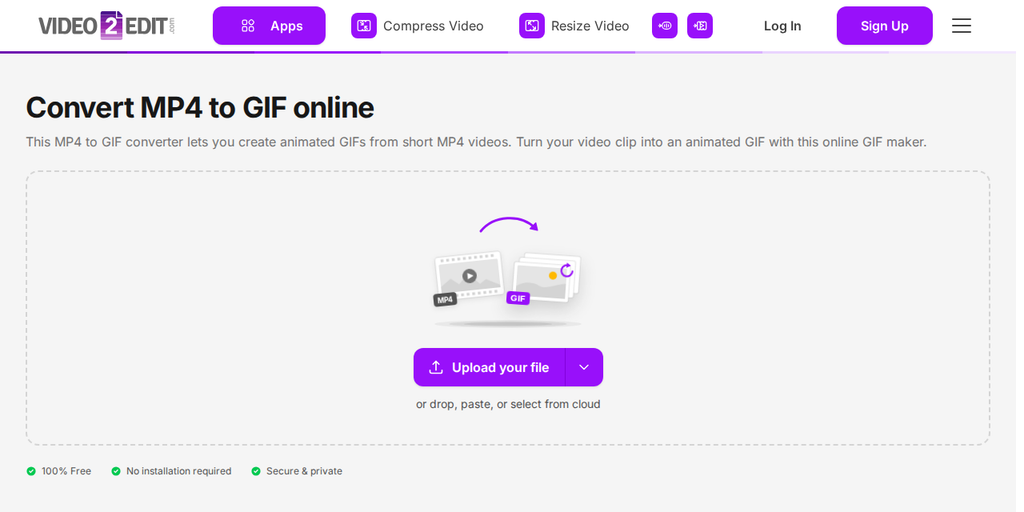
Follow these four simple steps to turn your video into a GIF:
- Go to video2edit.org: Click on MP4 to GIF converter.
- Upload MP4: Choose your video clip and upload it.
- Customize Your GIF (Optional): Adjust the size, change the frame rate, or choose how many times the animation loops.
- Click "Convert": Sit back and let the tool do the work. In seconds, your animated GIF is ready.
- Download your GIF: Save it to your device and share it.
Click "Upload your file" to add a video from your device or drop it into the box. Use the arrow next to the button to add a video from a URL, Google Drive, OneDrive, or Dropbox.
Why Choose Video2Edit's MP4 to GIF Converter?
- User-friendly: No technical skills required.
- Flexible Options: Customize sizes, frame rates, and loops.
- Fast & free: Convert to GIF in seconds, at no cost.
- Supports multiple files: Need multiple GIFs? Upload several clips at once.
Keep in mind that only the first two minutes of each video will be converted. If your clip is longer, consider splitting it into multiple GIFs.
Ready to Convert MP4 to GIF?
Turn your favorite video moments into shareable animated GIFs. Upload your clip, customize your GIF, and share it.
Start using the MP4 to GIF converter now and create GIFs from your videos.
Go Premium!
Our online service is free for casual users.
Going premium offers:
- A higher file size limit for uploads (up to 64 GB)
- Batch processing for a smoother workflow
- No waiting in queues
- Priority customer support
- An ad-free experience
For more details, visit our pricing page.
Explore more Video2Edit tools
Enhance your video editing with Video2Edit's online tools:
- Compress Video: Reduce file size without losing quality.
- Resize Video: Adjust dimensions to fit your needs.
- Extract Tracks from Video: Separate audio for use in other projects.
- Audio Editor: Edit and enhance your soundtracks with ease.
- Volume Booster: Increase audio levels for a better listening experience.
- File Converter: Convert any file to or from video formats with ease.
Try them today and improve your video projects.